Mark a runner DNF / dropped
When a runner drops out at an aid station, record it as a DNF (Did Not Finish). That stops them from being expected at later stations and marks their result correctly.
1. Pull up the runner
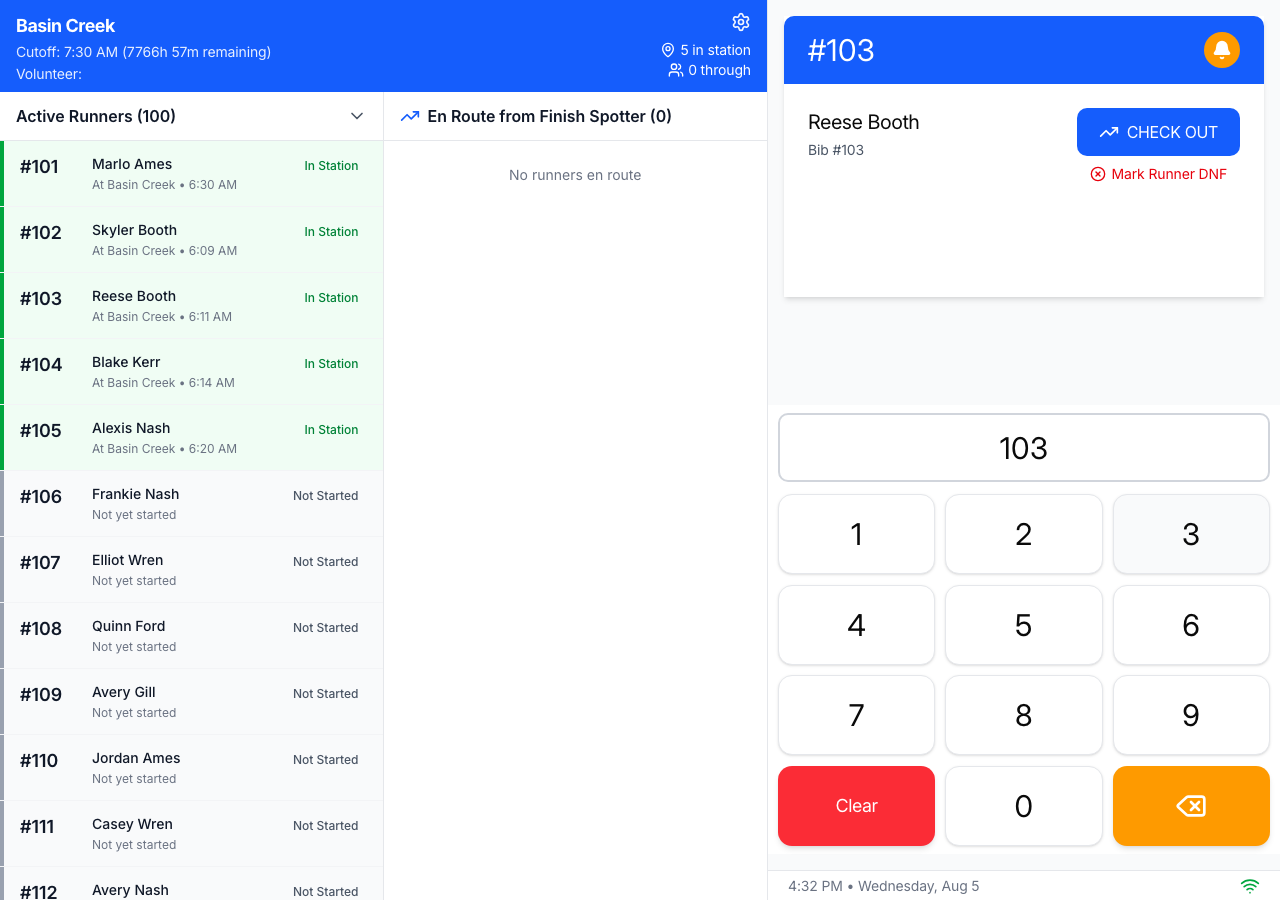
On the station’s check-in screen, enter the runner’s bib. On their card, tap Mark Runner DNF.
2. Pick a reason and confirm
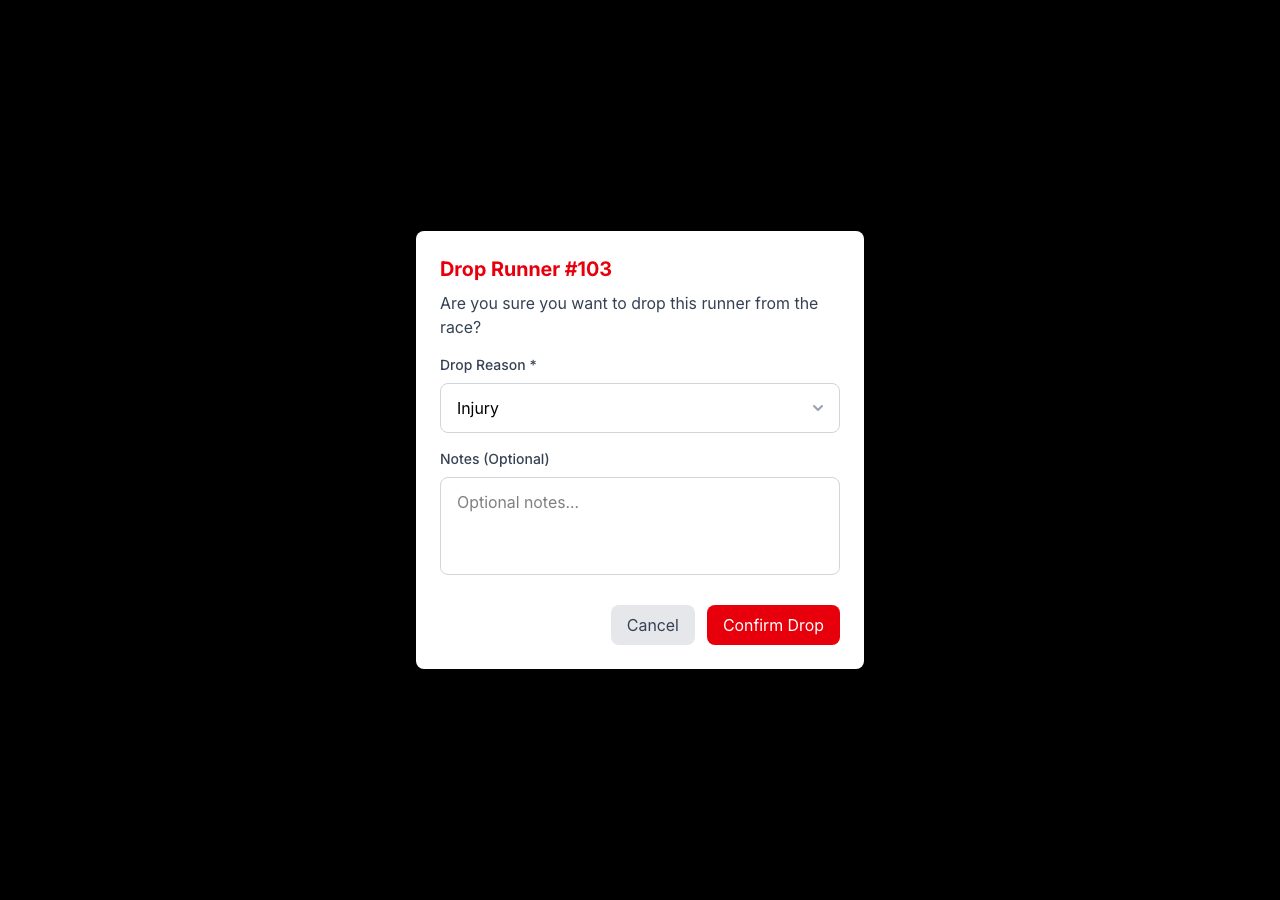
Choose a drop reason — Medical, Time Cutoff, Voluntary Withdrawal, Injury, or Other — add an optional note, then tap Confirm Drop. The runner is marked DNF and moves out of the active list.
ℹ️ DNF vs DNS. A DNF is a runner who started but didn’t finish (dropped) — that’s what this records. A runner who never started is a DNS (Did Not Start), which the race director sets separately, not from this screen.
Last updated on