Edit the time of an event
If a scan was recorded at the wrong time — a volunteer’s device clock was off, or an arrival got logged a few minutes late — you can correct it. The change is tracked, so there’s always a record of what was edited.
1. Open the event
From the runner’s timeline, tap the entry you want to fix. Here it’s Marlo Ames (#101), arrived at Basin Creek at 6:05.
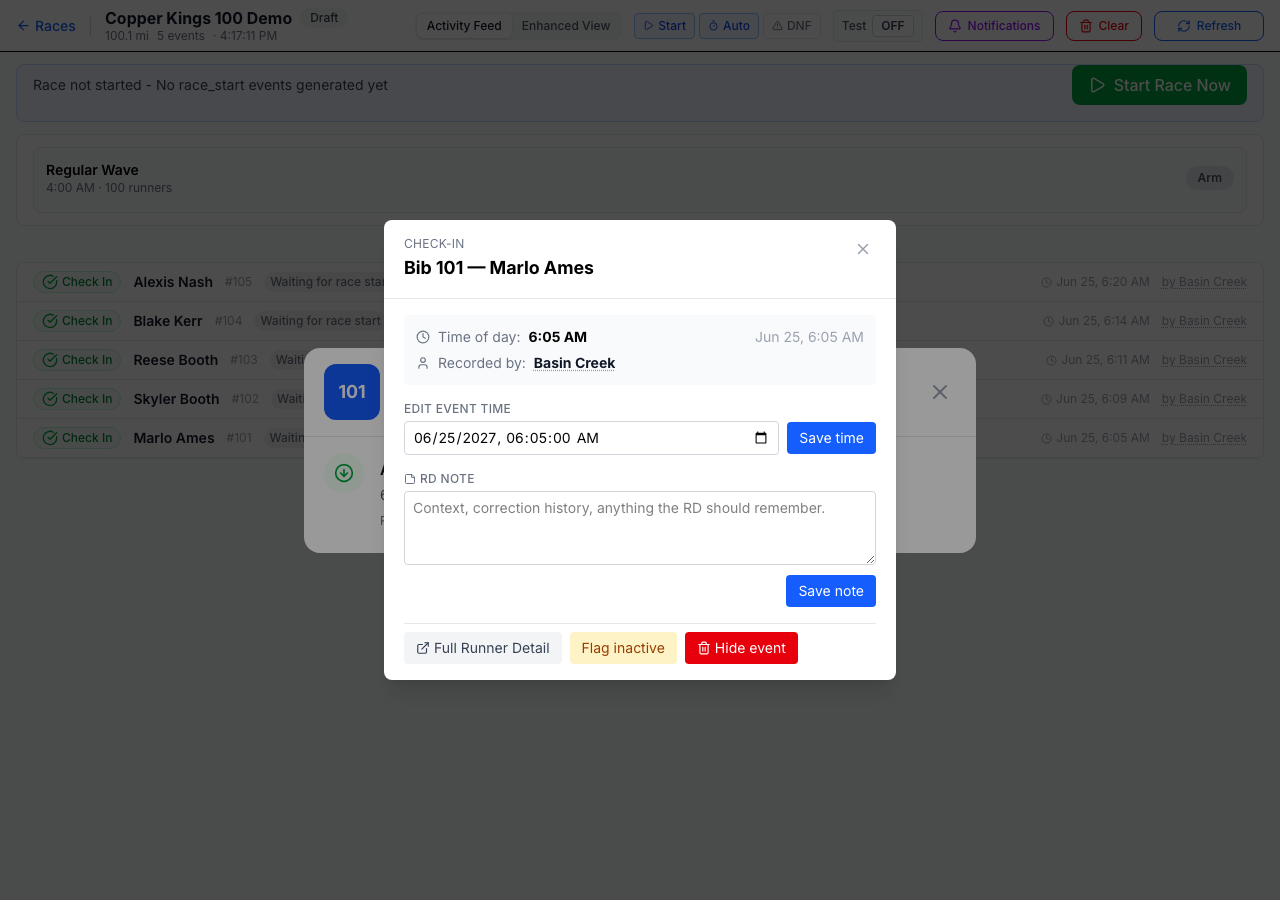
2. Set the correct time
Under Edit event time, choose the corrected time.
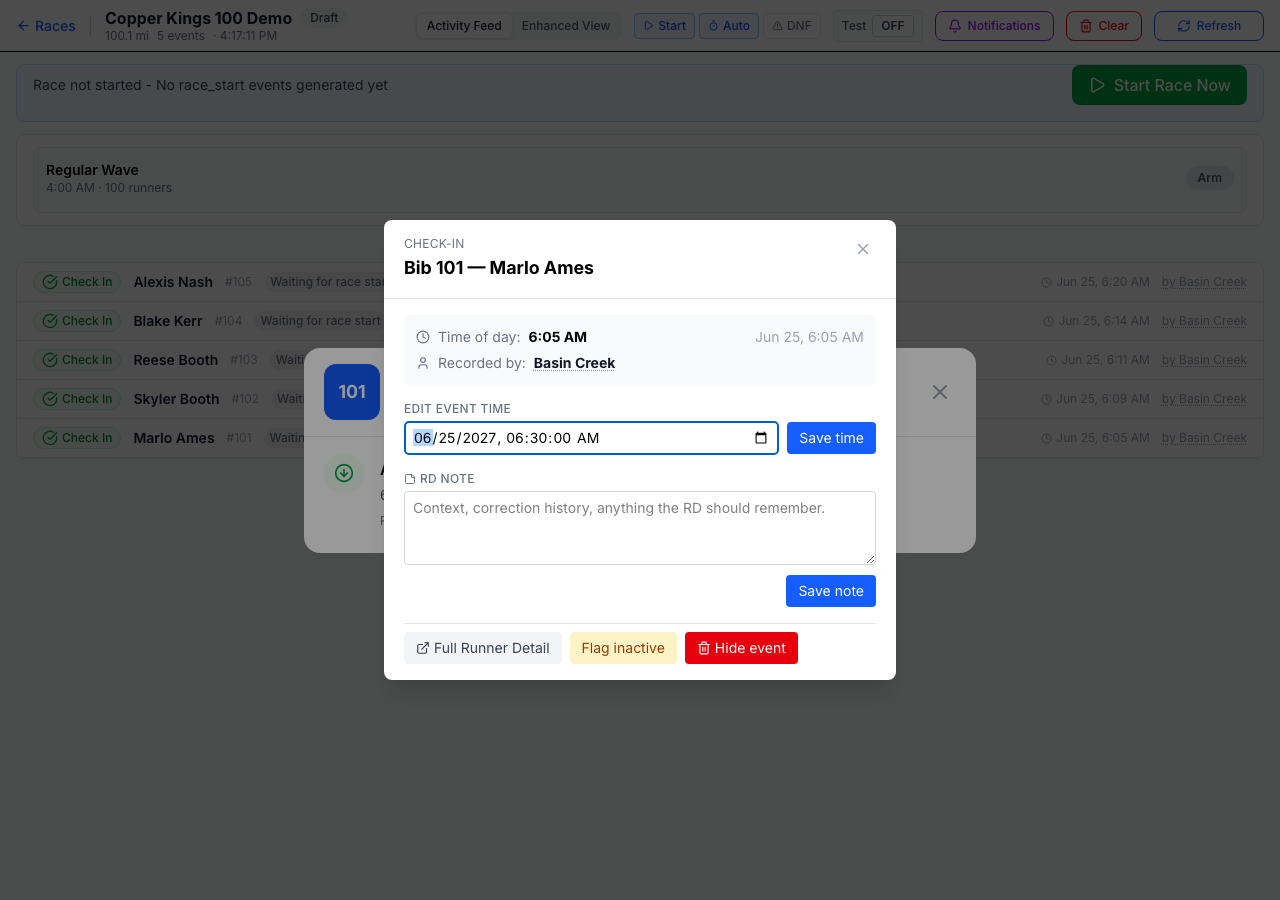
3. Save
Tap Save time. The event updates immediately and is marked as edited (you can see an “Edited” count on the event).
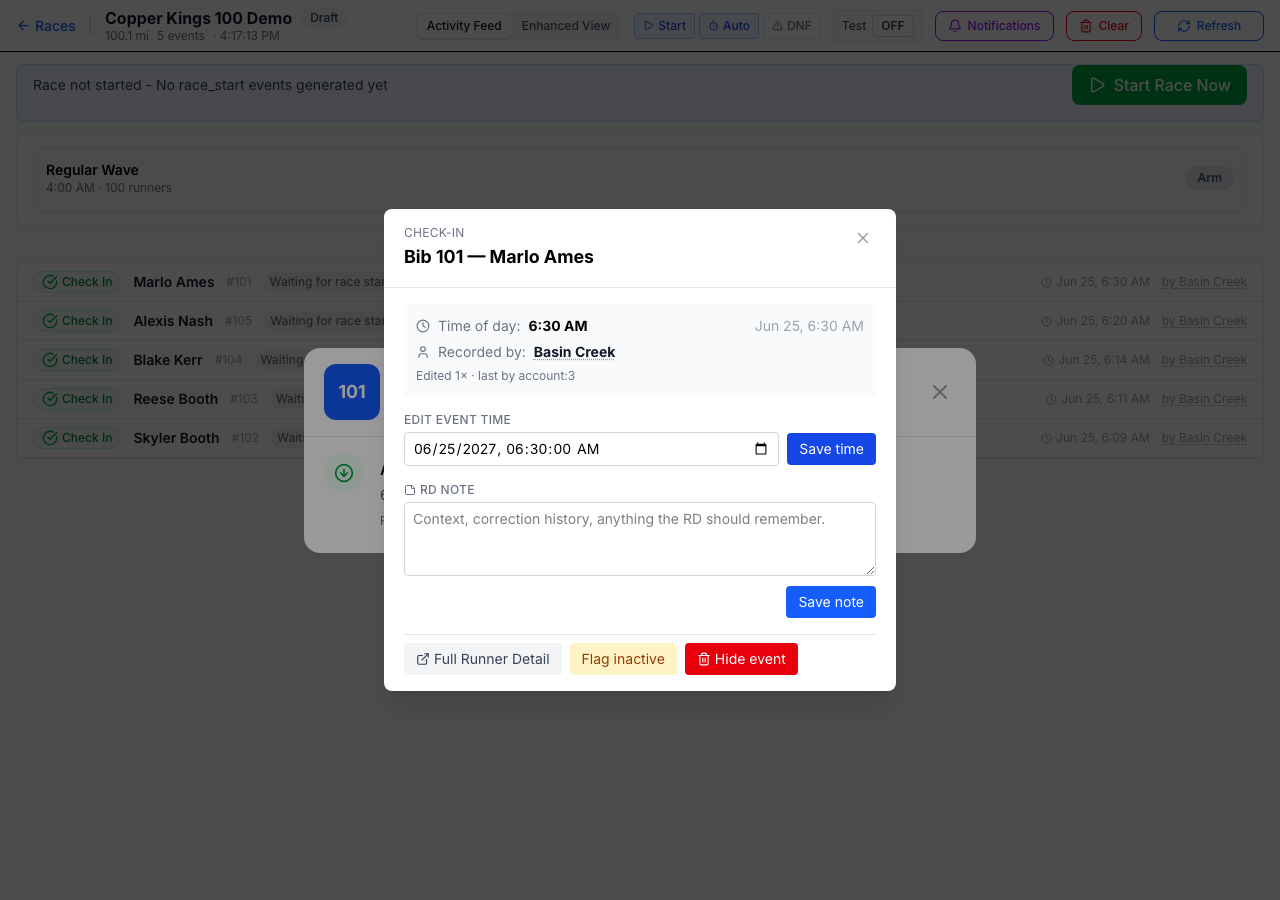
⚠️ This changes the scan’s displayed time — the one used for the runner’s arrival, splits, and results. Use it only to fix a genuinely wrong time; the edit is logged so the correction is never silent.
Last updated on